Hub Documentation
Step-by-step screenshots for registering and logging in, by role.
For JA staff, coordinators and volunteers working at a national JA office. Accounts live in JA ID (Okta) — the same login used across JA’s global systems.
Creating an account
- 1
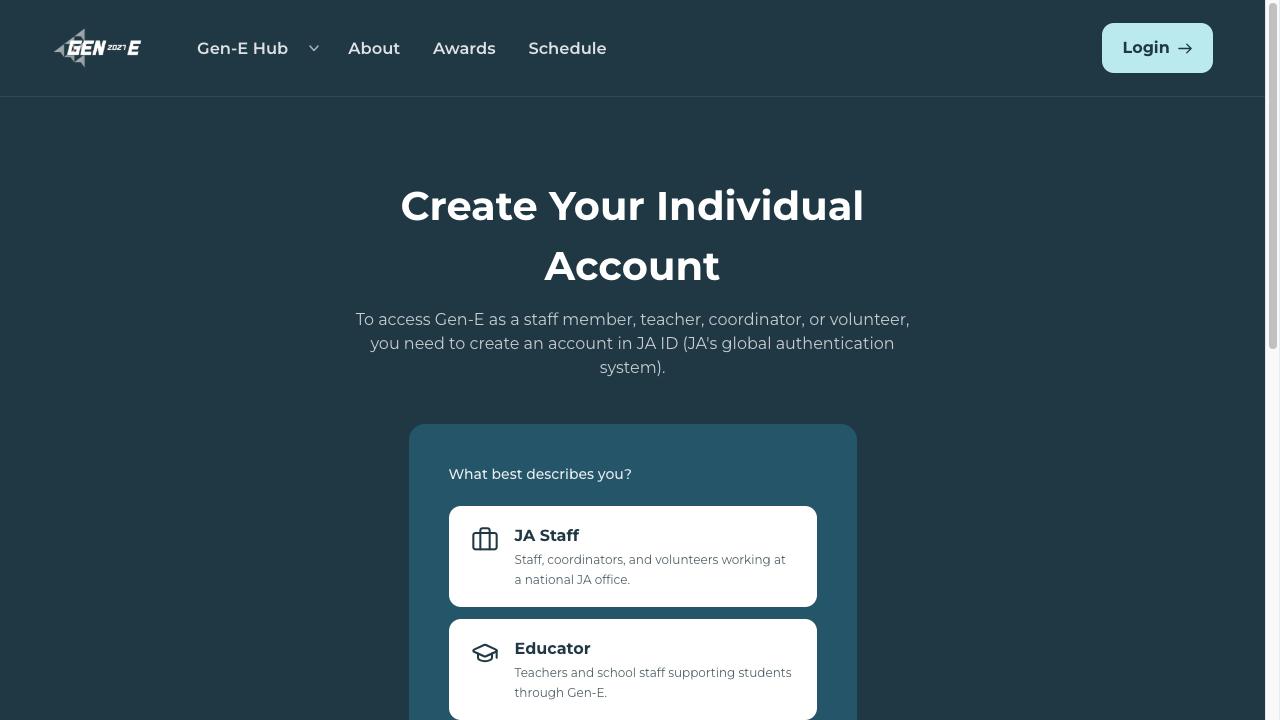
Pick your role and country
On /hub/register, choose “JA Staff,” then select your country from the list.
- 2
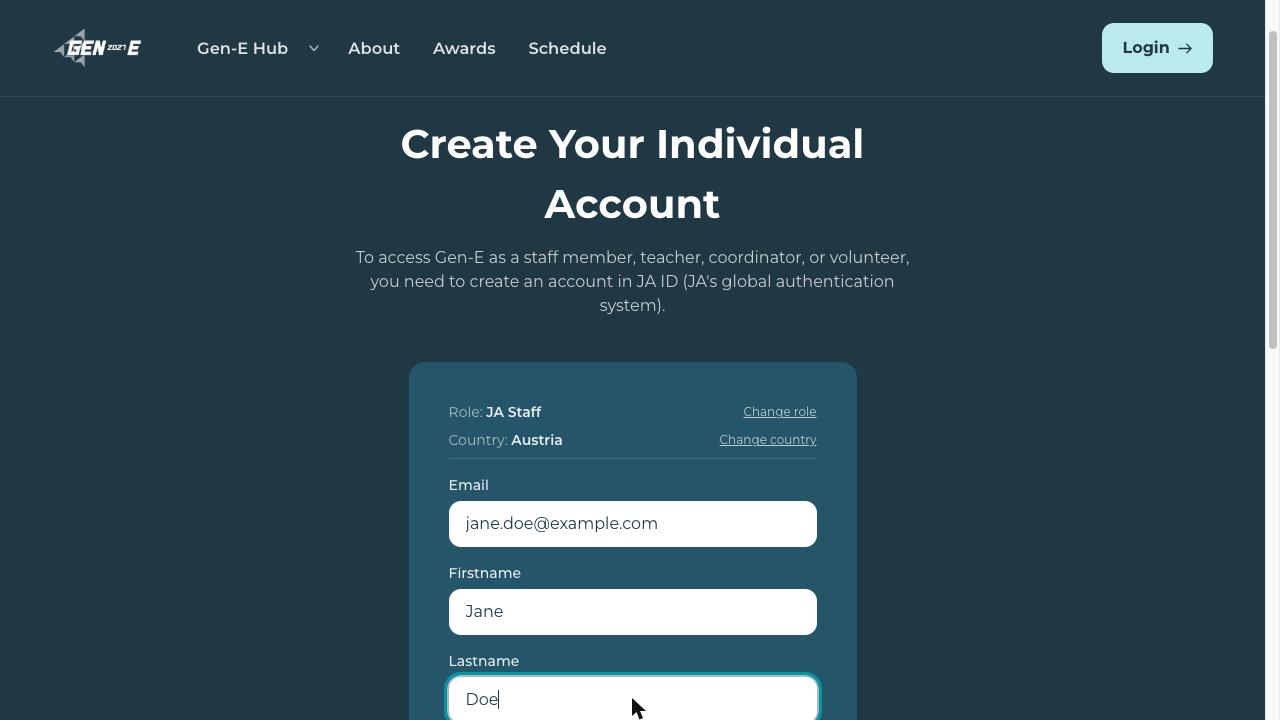
Fill in your details
Your role and country carry over automatically — just add your email and name.
- 3
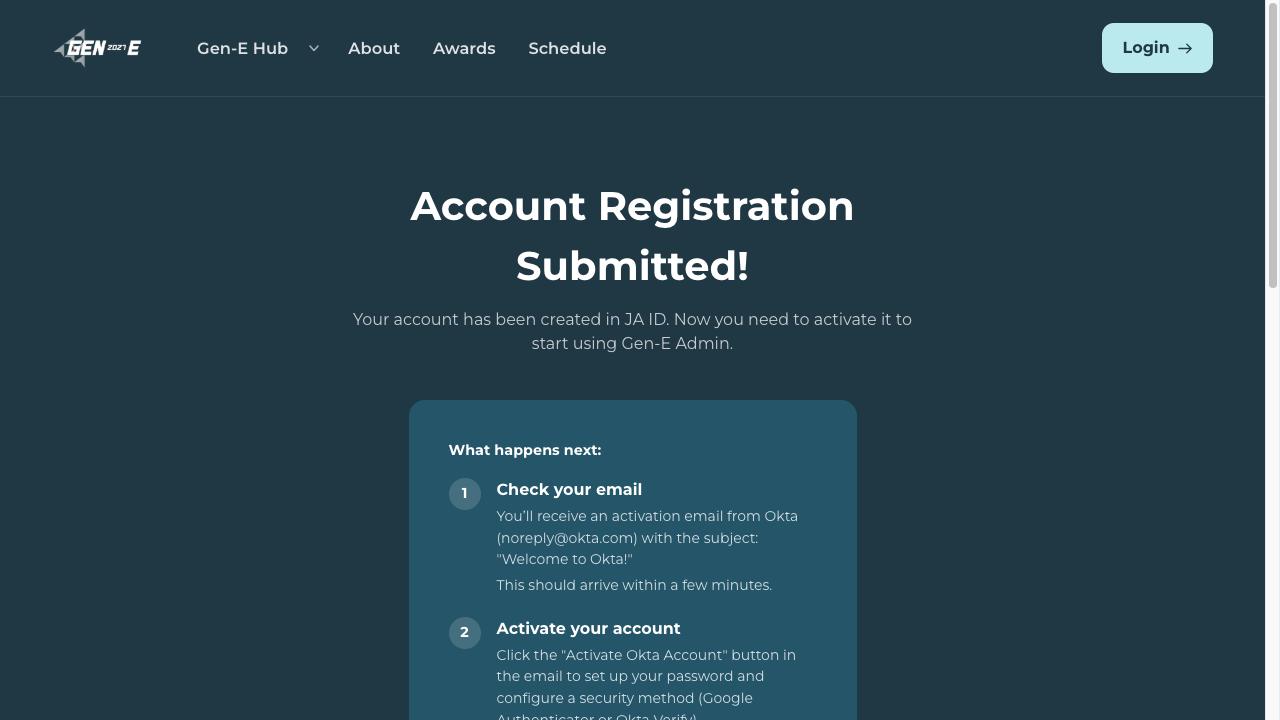
Submitted — check your email
An activation email from Okta (noreply@okta.com) arrives within a few minutes.
- 4
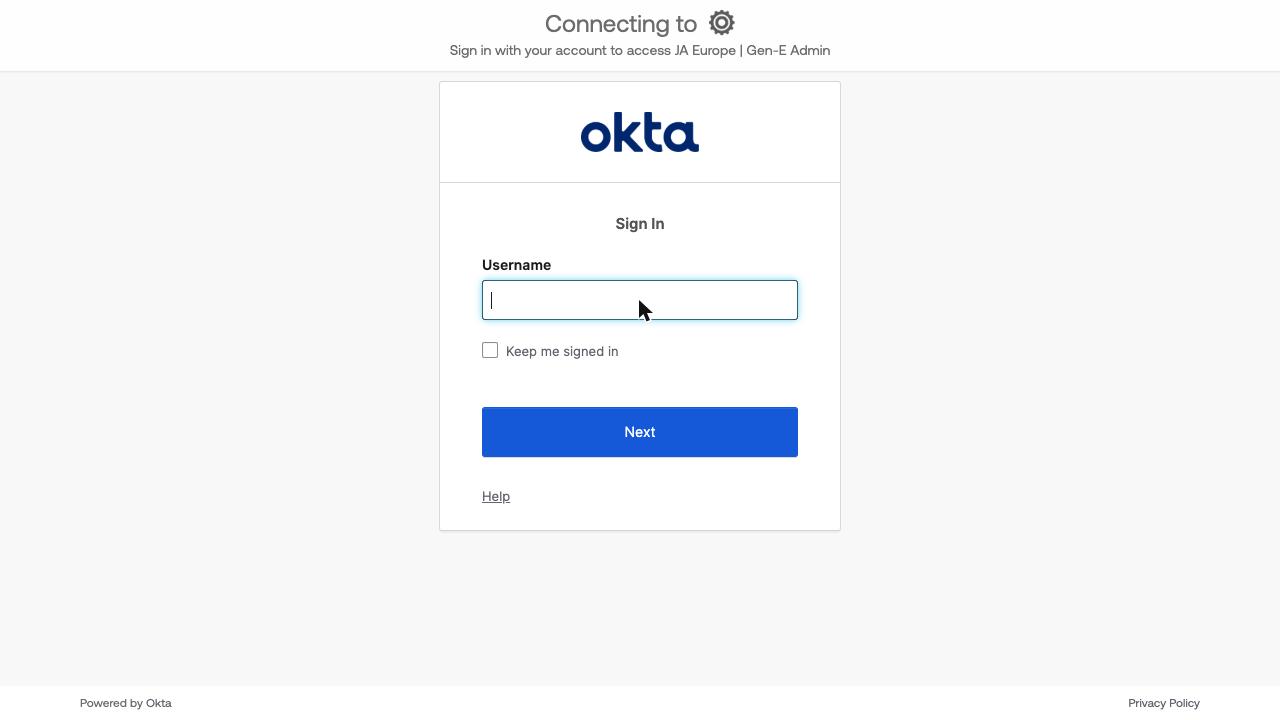
Activate, then sign in with Okta
Activate from that email and set a password — you’ll use this same Okta screen every time afterwards.
Logging back in
- 1
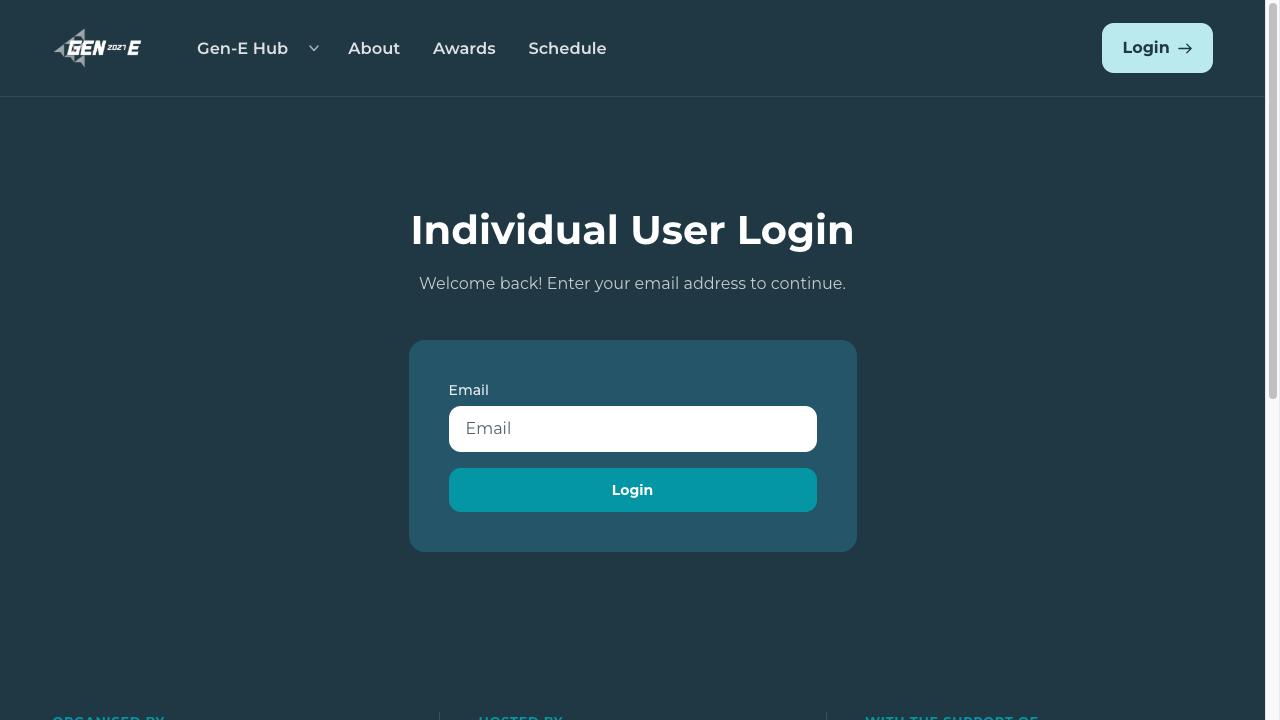
Enter your email
Already registered? Go to /hub/login and enter the same email address.
- 2
Signed straight into Okta
A matching account sends you directly to Okta’s sign-in screen.
For teachers and school staff supporting students through Gen-E. Educators register on the same page as Individual/JA Staff, but sign in passwordlessly via a one-click email link instead of Okta.
Creating an account
- 1
Choose “Educator”
Same registration page as Individual/JA Staff — pick “Educator” instead, then your country.
- 2
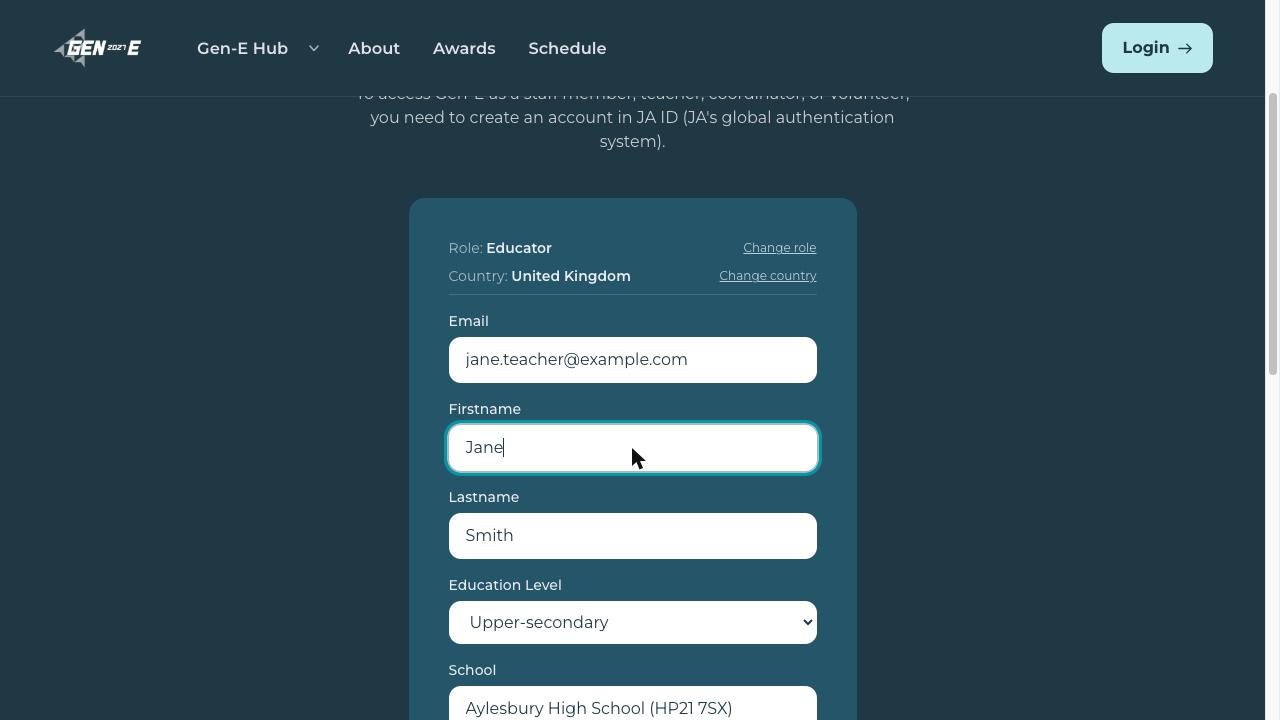
Fill in your details, school included
Educators also choose an Education Level and search for their school by name.
- 3
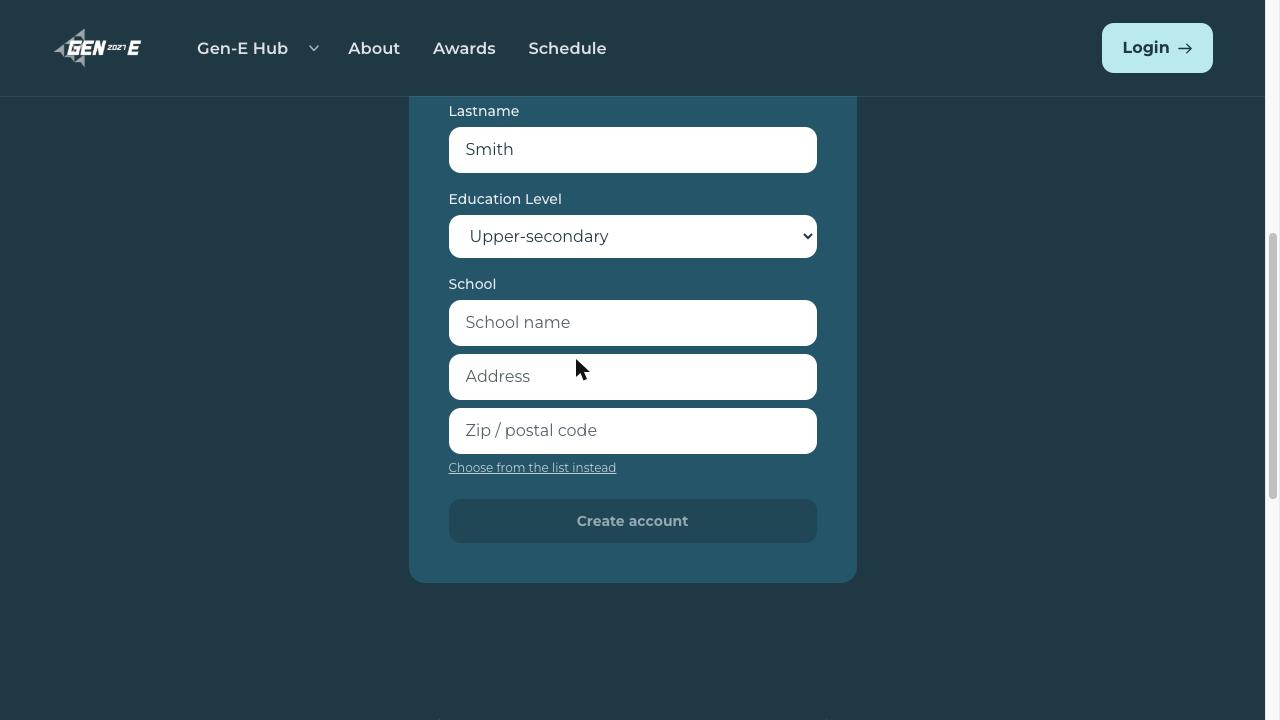
Can’t find your school?
Suggest a new one right on the form — name, address and zip code.
- 4
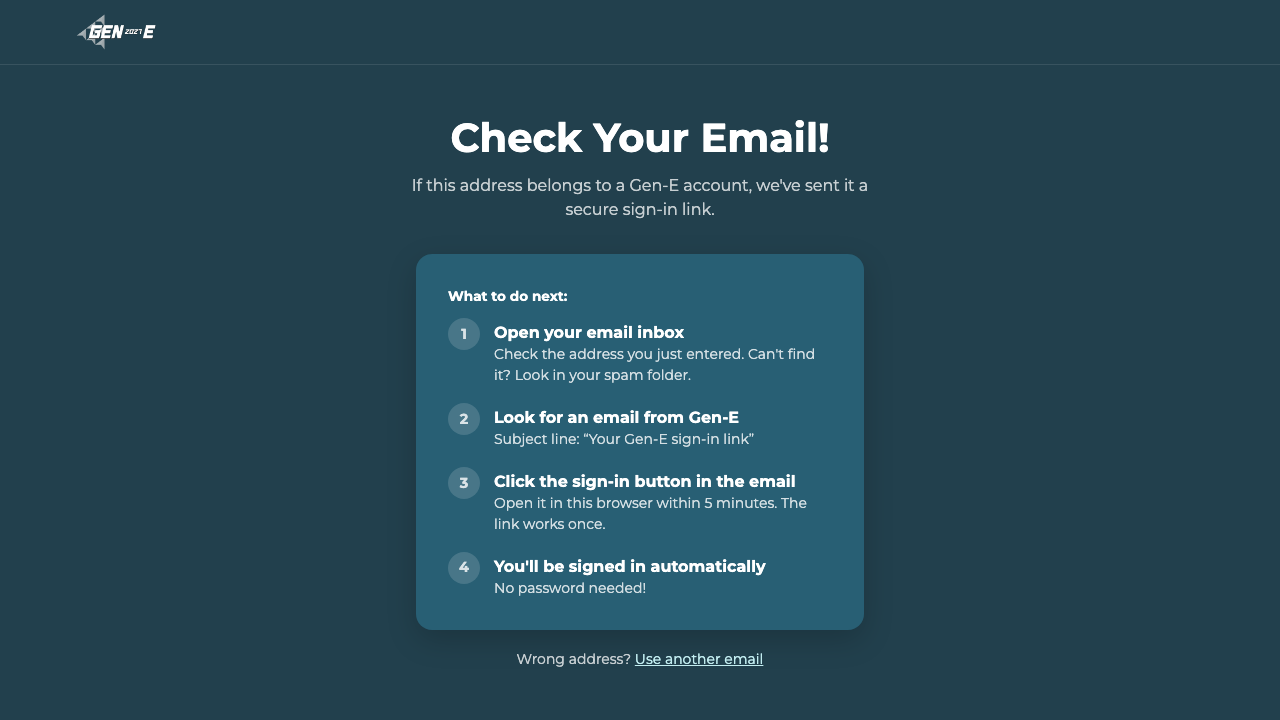
No activation step — straight to sign-in
There’s no approval queue for Teachers. Submitting takes you straight into the sign-in flow below.
Signing in (new or returning)
- 1
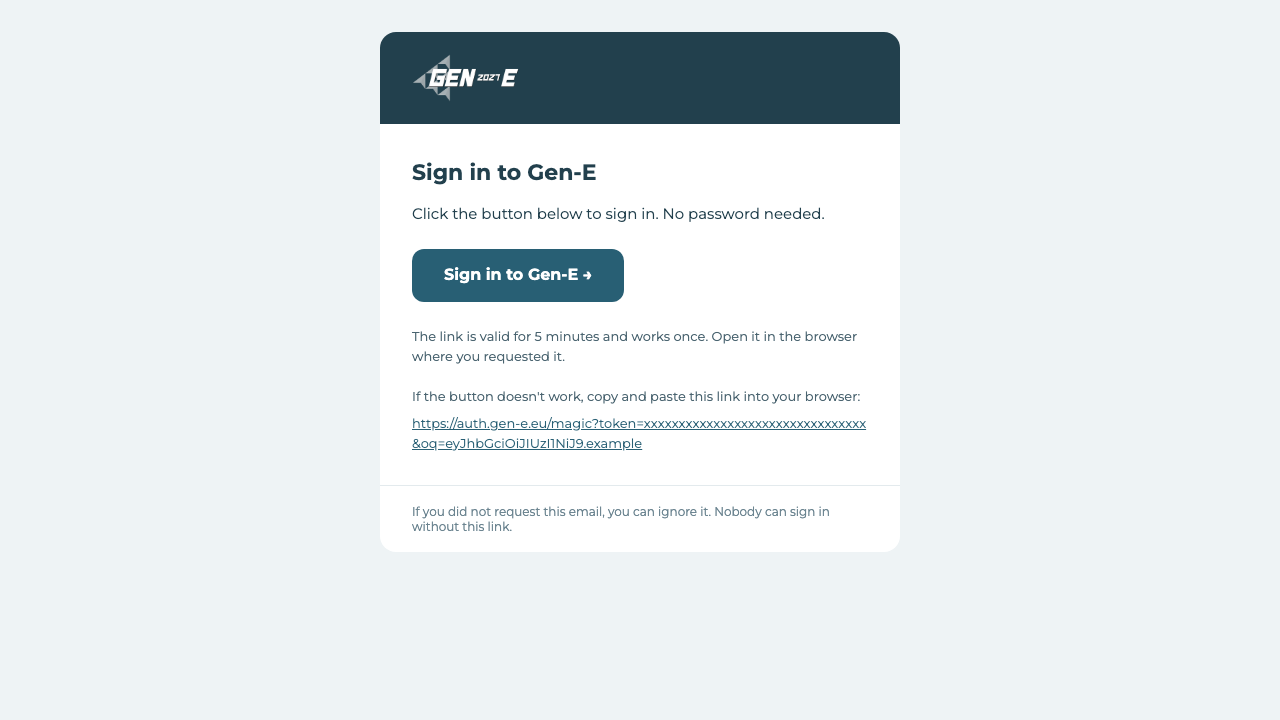
A one-click sign-in link
Gen-E emails a button-style link, valid for 5 minutes and usable once.
- 2
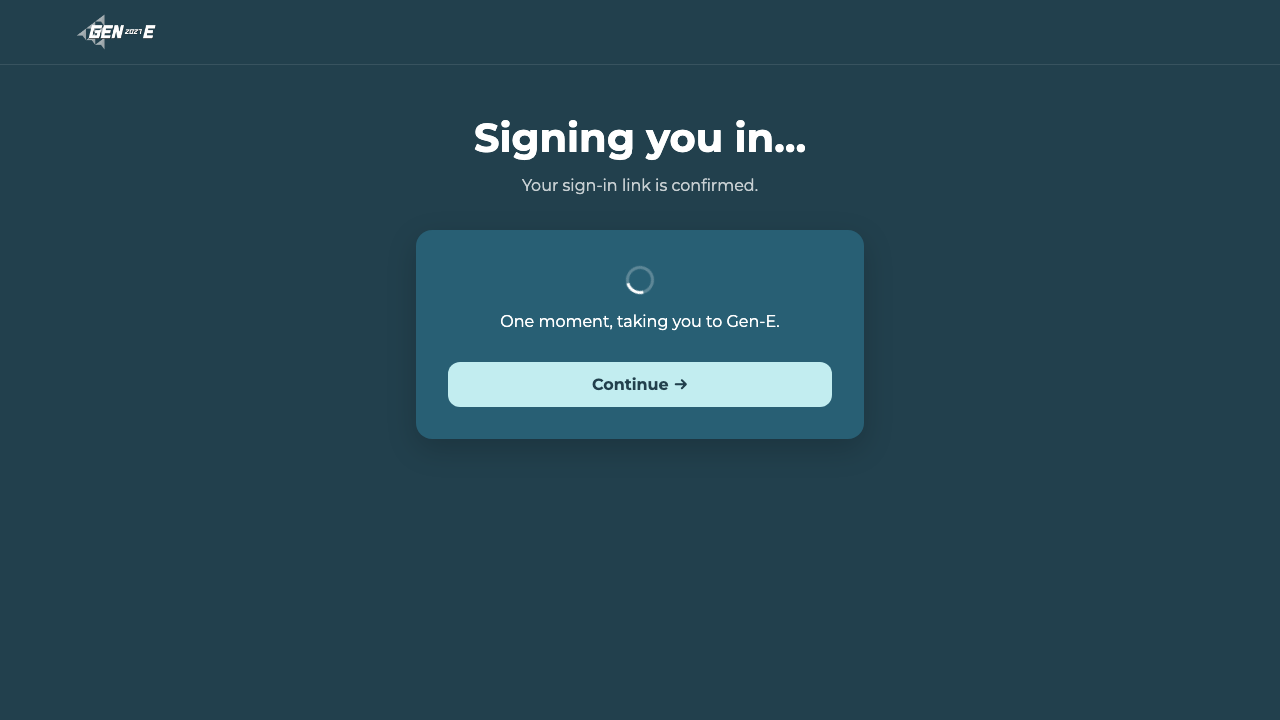
Click it — you’re in
Opened in the same browser, it signs you in automatically in under a second.
- 3
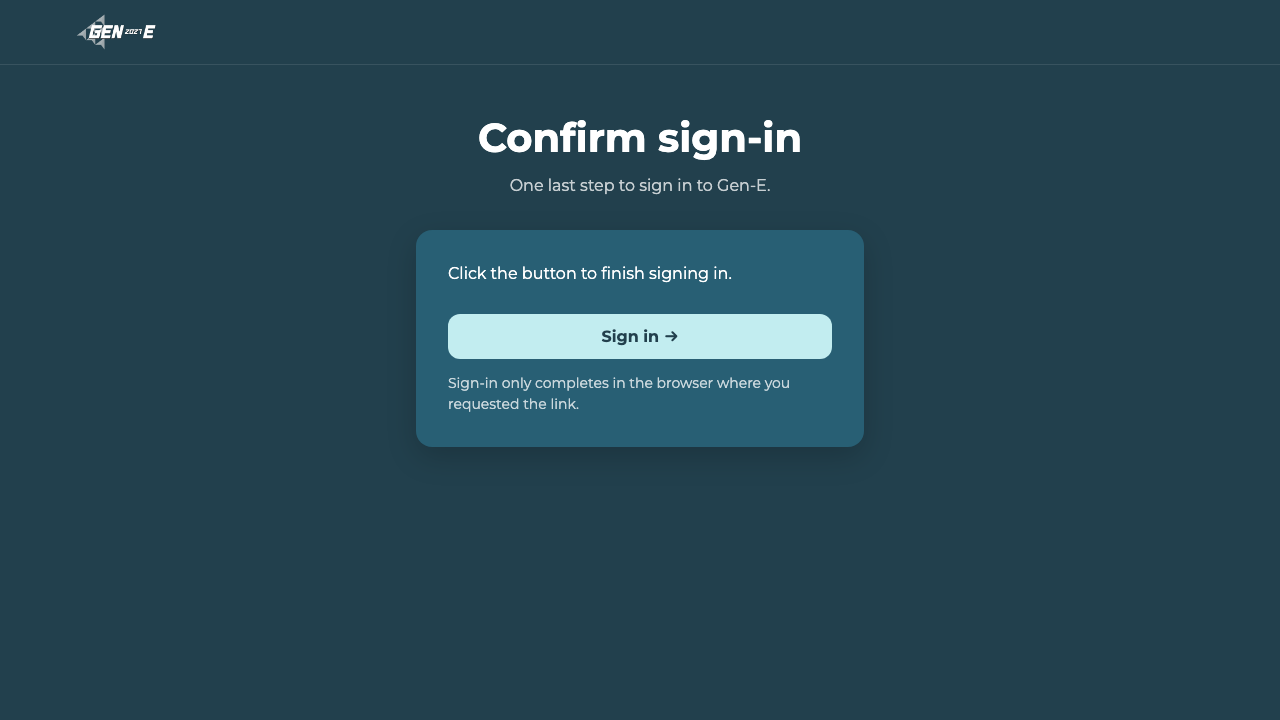
Opened elsewhere? Confirm first
Clicking the link in a different browser or app shows a confirm screen instead — a safeguard so an email scanner can’t use up the link for you.
- 4
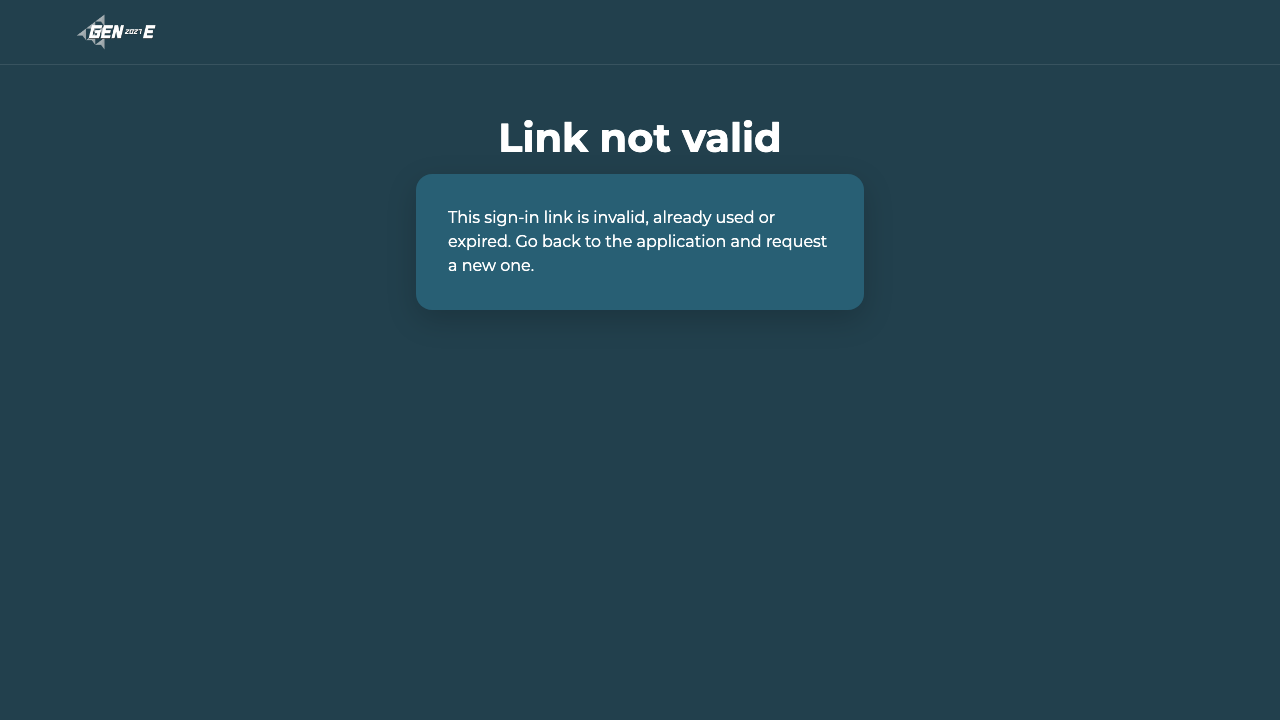
Link expired or already used
Links only work once and expire after 5 minutes — just go back to /hub/login and request a new one.
For student teams running a JA Business. One shared account per team, under a shared business email — no individual logins, no password.
Creating a business
- 1
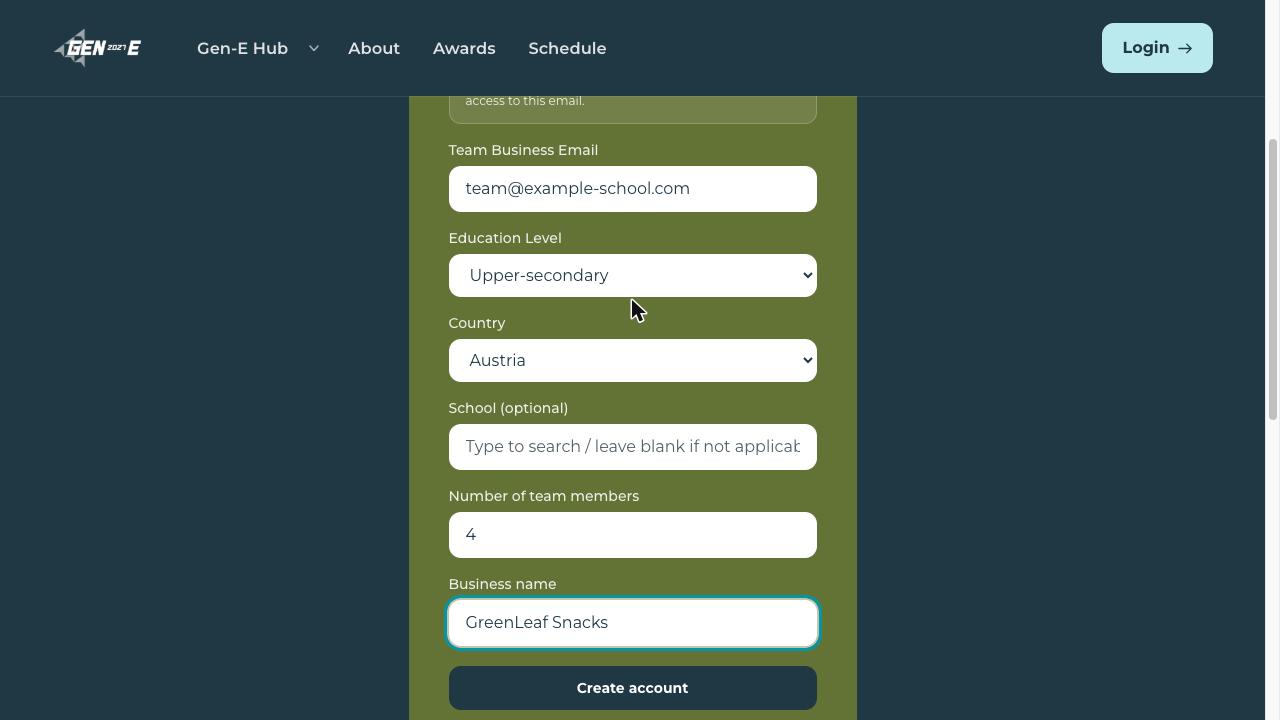
Fill in your business details
Shared team email, education level, country, number of team members and business name.
- 2
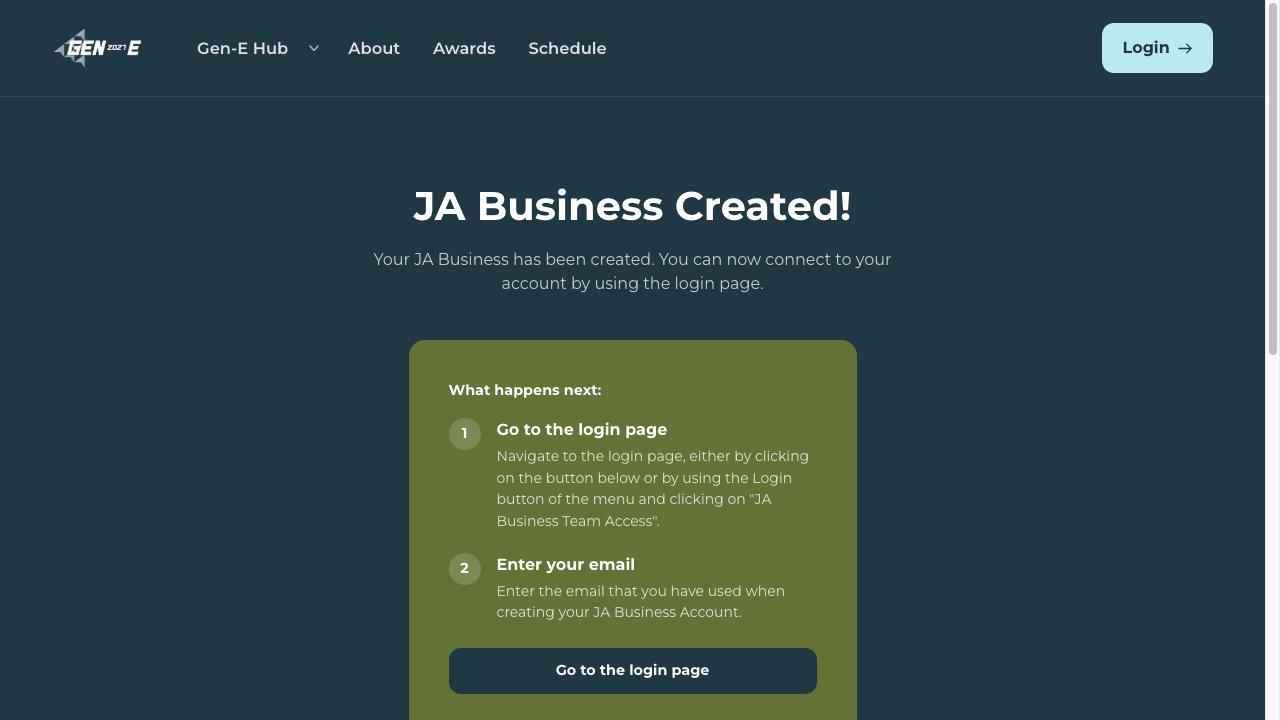
JA Business created
Now log in using that same business email.
Logging in
- 1
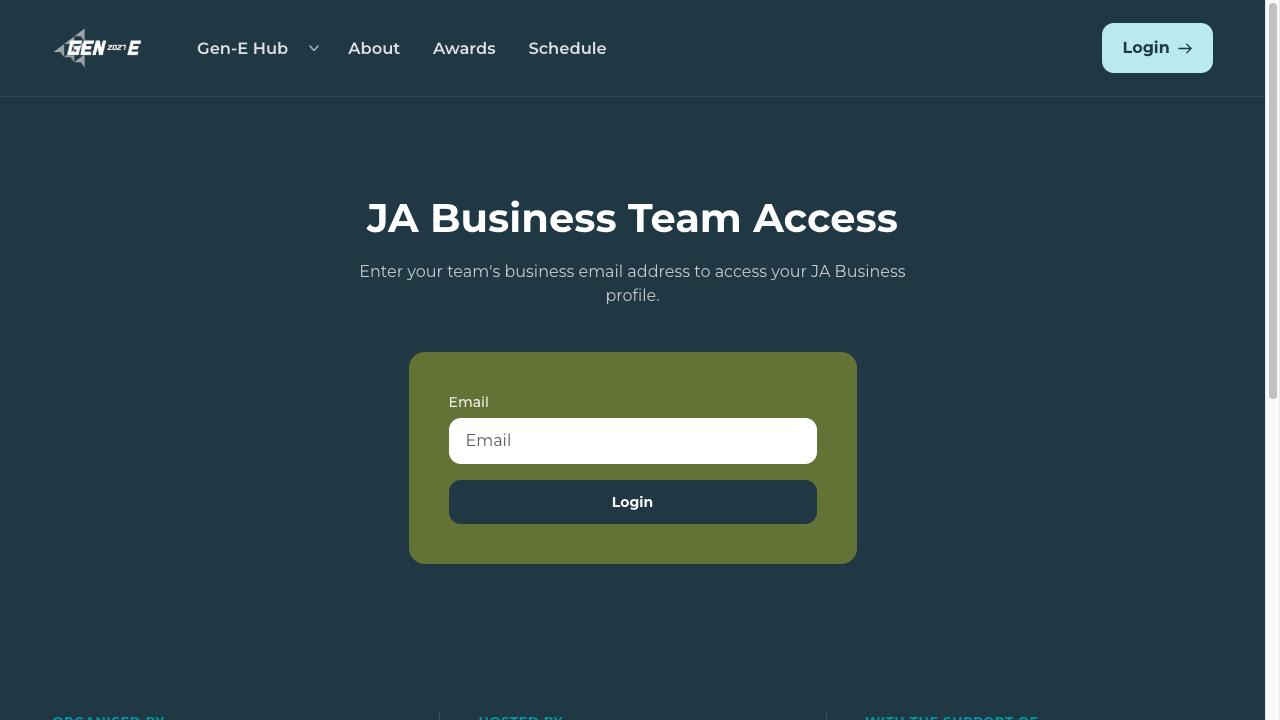
Enter your team’s email
Go to /hub/login-to-the-ja-business-portal and enter your shared business email.
- 2
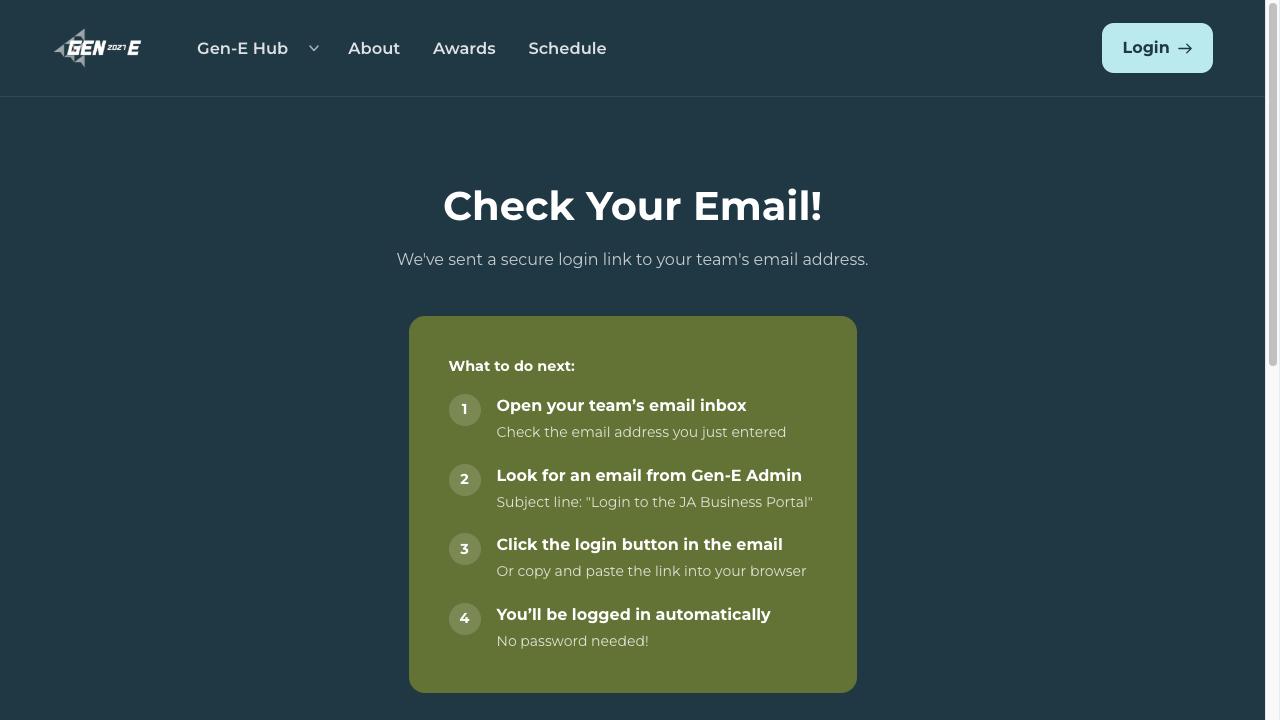
Check your email
A secure sign-in link arrives — no password needed, click it to be logged in automatically.